Types of Computer Memory: What are DDR, VRAM, HBM, Cache, EEPROM, and others?
If you’ve ever tried to buy a new laptop, build a PC, or even read about the latest AI chips in the news, you’ve probably run into a complete alphabet soup. One ad boasts DDR5 and an NVMe SSD, a graphics card review goes on about GDDR7 VRAM, and an AI chip uses HBM4. To make it worse, if you play with Arduinos like I do, you get hit with Flash, SRAM, and EEPROM on a single board.
It feels like you need to learn twenty different technologies just to understand a spec sheet.
But here’s the secret I found after working with these for years: they’re mostly just variations of two or three basic ideas stacked in layers. Once you see the map, every new acronym you meet slots into a place you already understand.
So let’s build that map together, one layer at a time.
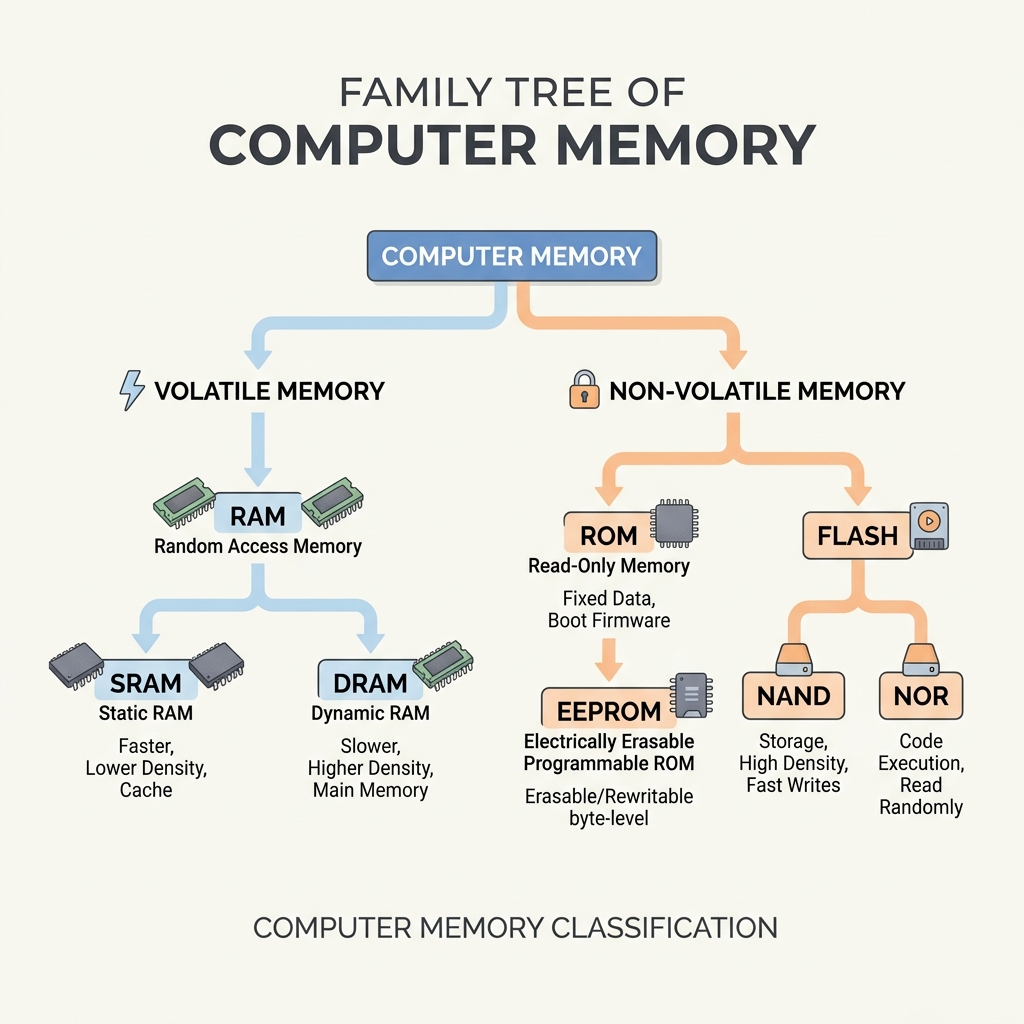
Every memory acronym you’ve heard belongs somewhere on this tree.
Volatile vs. Non-Volatile: The Big Divide
To understand memory, you only need to ask one question first: Does the chip forget everything when you turn the power off?
- Volatile memory needs constant power. Cut the plug, and everything vanishes instantly. RAM in all its forms (DDR, VRAM, cache) is volatile.
- Non-volatile memory keeps its data with no power at all. Your SSD, USB sticks, SD cards, and the microcontroller’s program memory are non-volatile.
This divide is the reason your computer has to “boot up” at all. When you power it on, your working memory (RAM) is completely empty. The system has to copy the operating system from your permanent storage (SSD) into your temporary RAM before it can do anything.
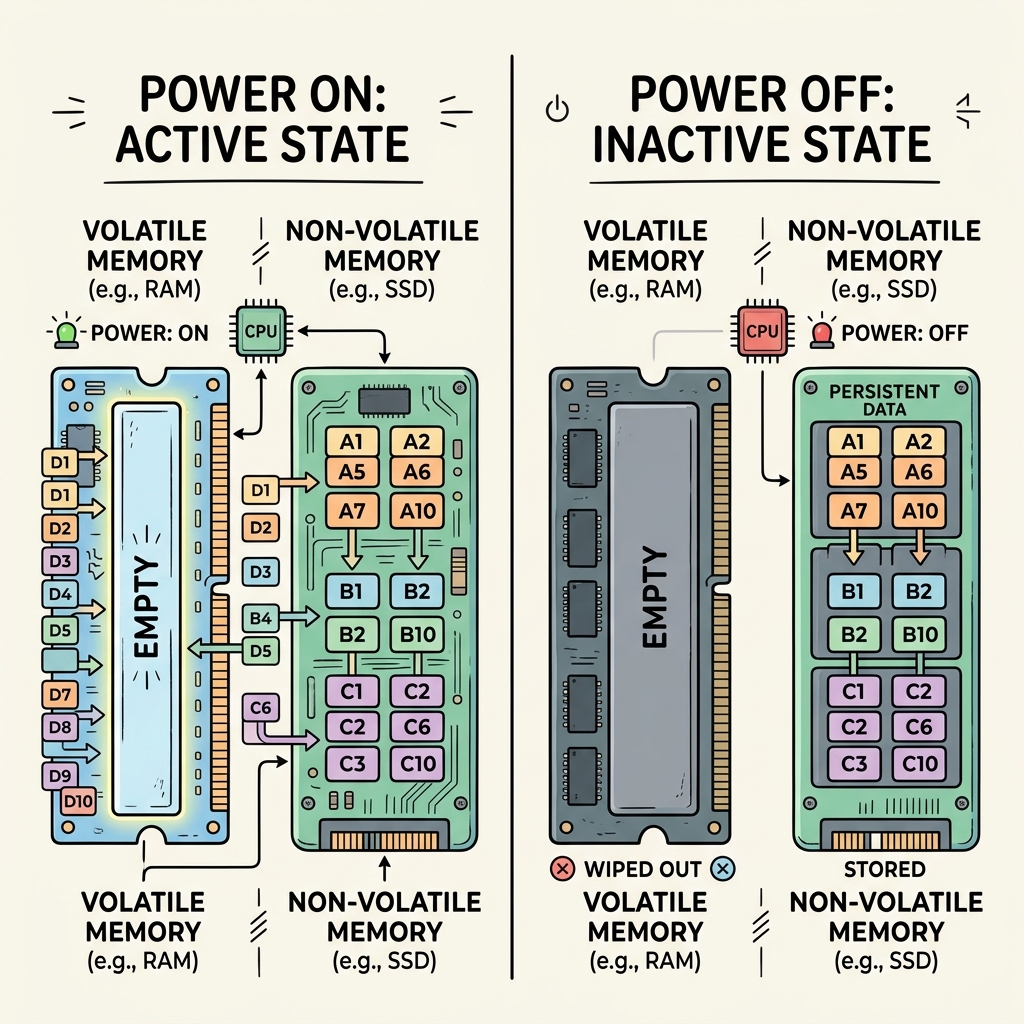
Power off: volatile memory forgets everything, non-volatile memory doesn’t care.
So why don’t we build everything out of non-volatile memory and never wait for boots? Because fast memory is expensive and small, while cheap memory is slow and huge. Since we can’t get all three in one package, we stack them like a pyramid.
Think of storage as a filing cabinet, RAM as your desk, and cache as the document in your hand. You don’t work inside the filing cabinet—you pull a file out, put it on your desk to work on it, and put it back when you’re done.
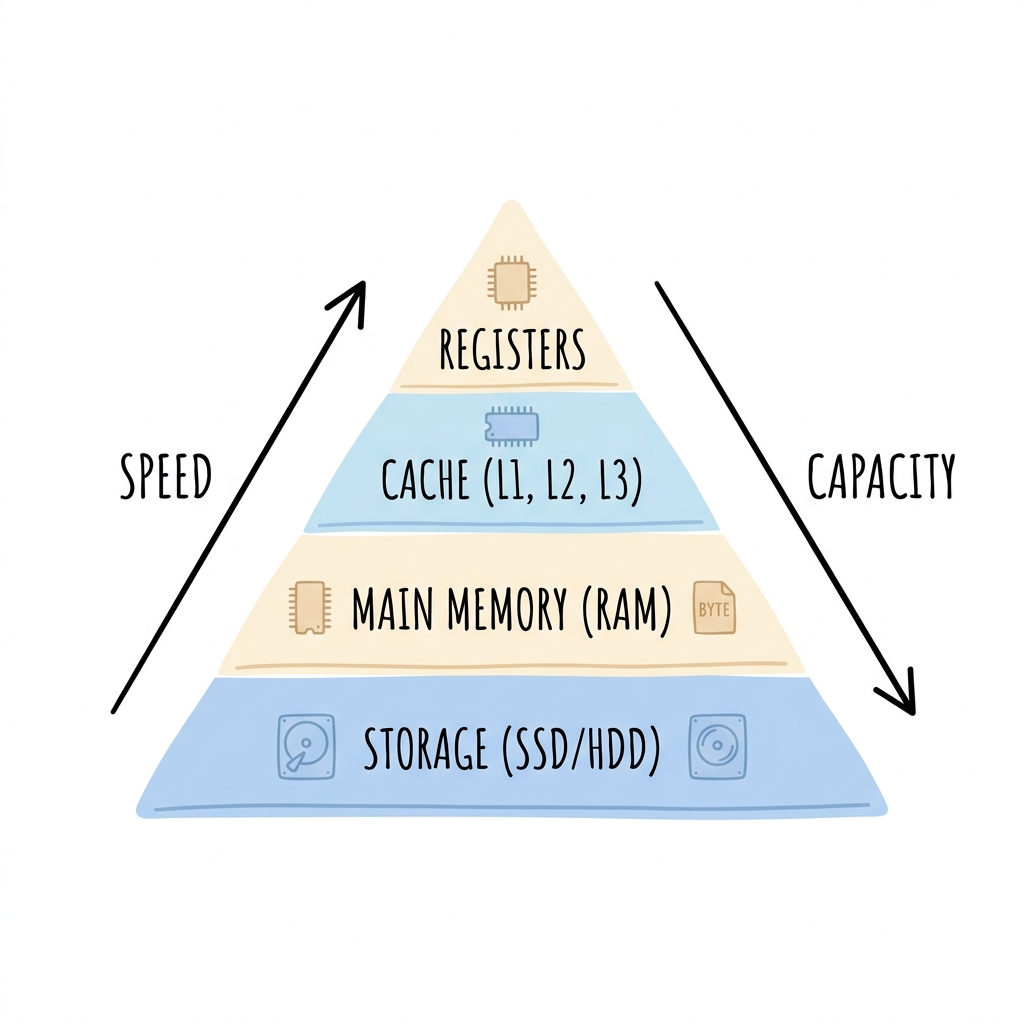
The memory hierarchy: every layer trades capacity for speed.
Working Memory: SRAM, DRAM, and the DDR Family
The RAM layer is where most of the confusing acronyms live. But they all trace back to just two ways of storing a bit:
- SRAM (Static RAM) stores each bit in a circuit of about six transistors. It’s incredibly fast, but six transistors per bit make it bulky and expensive. We use SRAM where speed is everything: CPU cache and microcontroller RAM.
- DRAM (Dynamic RAM) stores each bit as an electrical charge in a single tiny capacitor. Because it’s so small, we can pack billions of them onto a cheap chip. The catch? Capacitors leak. The system has to constantly refresh (re-read and re-write) every bit thousands of times a second to keep them from fading. That’s why it’s called dynamic RAM.
So which one is in the stick you just bought? Every standard PC “RAM” you buy is DRAM. And SDRAM, DDR4, and DDR5 are just generations of this same family, not competing products.
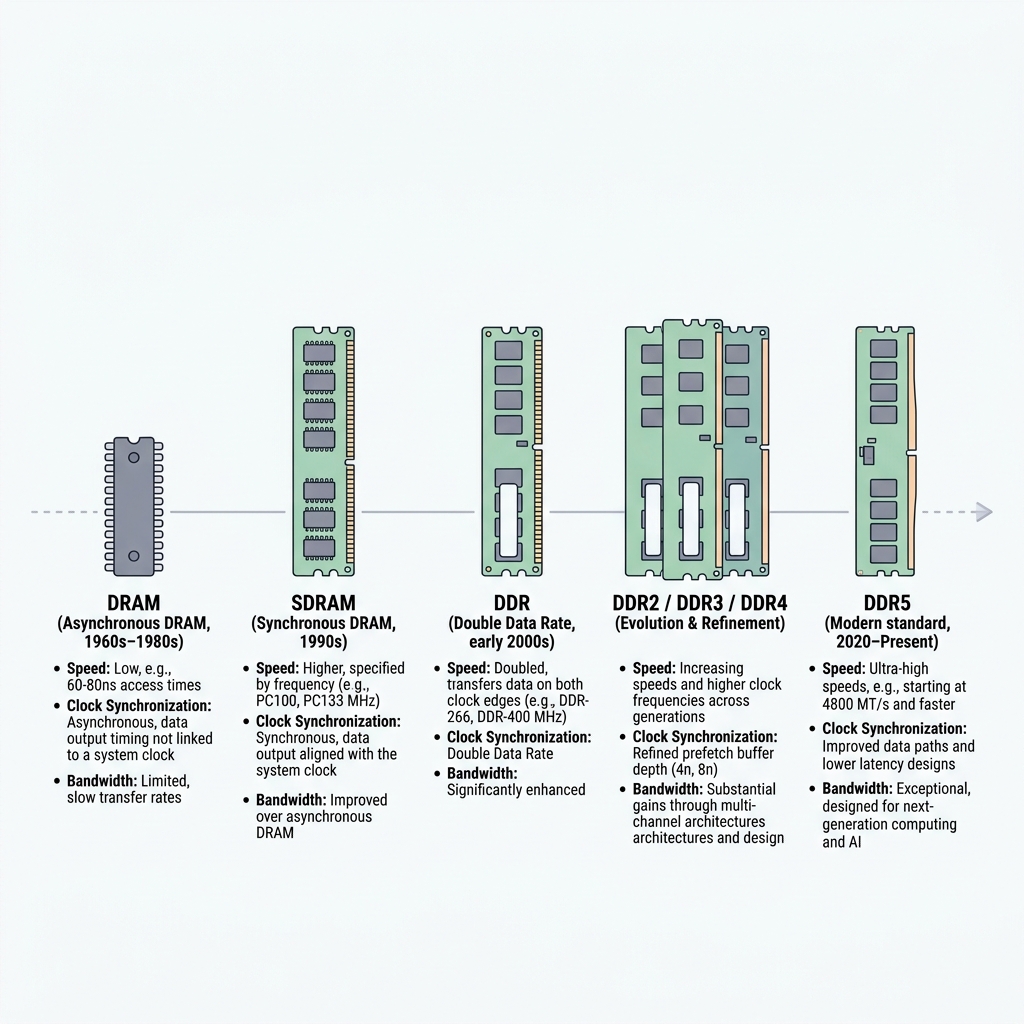
One family line, not five products: every modern DDR stick is still DRAM underneath.
SDRAM (Synchronous DRAM) synchronized reads/writes with the system clock. DDR (Double Data Rate) doubled the speed by transferring data on both edges of the clock tick. Every generation since (DDR2 to DDR5) has just bumped the speed and lowered the power.
Just remember: a DDR5 stick won’t fit into a DDR4 motherboard. I’ve seen people make this mistake, and it’s a quick way to ruin a build!
Want the transistor-level version of this section — the actual SRAM cell, the actual DRAM cell, and the exact trick that turns SDRAM into DDR? I wrote that up separately: SRAM vs DRAM vs SDRAM: The Cell-Level Differences (and Where DDR Fits In).
VRAM, HBM, and Unified Memory: The Special Flavors
If you have a graphics card, it has its own memory called VRAM (Video RAM). So what is VRAM, really? Under the hood, it’s just DRAM (specifically GDDR, or Graphics DDR) that belongs to your GPU instead of your CPU.
Why does the GPU need its own copy at all? Because rendering a 3D game means moving massive textures continuously. Sending that data across the motherboard from system RAM is too slow, so the GPU keeps its own high-speed pool right next door.
If your computer slows down when you open twenty Chrome tabs, you need more RAM. If your games stutter at high texture settings, you need more VRAM. Note that VRAM is soldered directly onto your graphics card, so you can’t upgrade it later—you’ll need a new GPU.
For heavy AI workloads, GPUs use HBM (High Bandwidth Memory). Instead of placing DRAM chips flat on the board, HBM stacks them vertically like floors in a building and connects them with thousands of microscopic vertical wires. It’s still DRAM, just packaged vertically to deliver insane bandwidth.
And what about Apple’s unified memory? It’s just a single pool of RAM shared directly by the CPU and GPU, built onto the same chip package. It saves physical space and power, but because it is integrated, you can never upgrade it. Choose your capacity carefully when buying!
Curious why GPUs need GDDR or HBM instead of just more DDR, or how the two of them actually differ? That’s its own article: DDR vs GDDR vs HBM: How GPU Memory (VRAM) Actually Works.
Shrunk onto One Chip: Microcontroller Memory
Now here’s a fun question: does this whole pyramid still apply to something as small as a microcontroller? Let’s check the ATmega328P on an Arduino Uno, and you’ll see it does.
If you’ve ever compiled an Arduino sketch and seen the warning “Low memory available, stability problems may occur,” you’ve run into this hierarchy the hard way. An Arduino has three distinct memories built into its tiny package. Let’s go through each one:
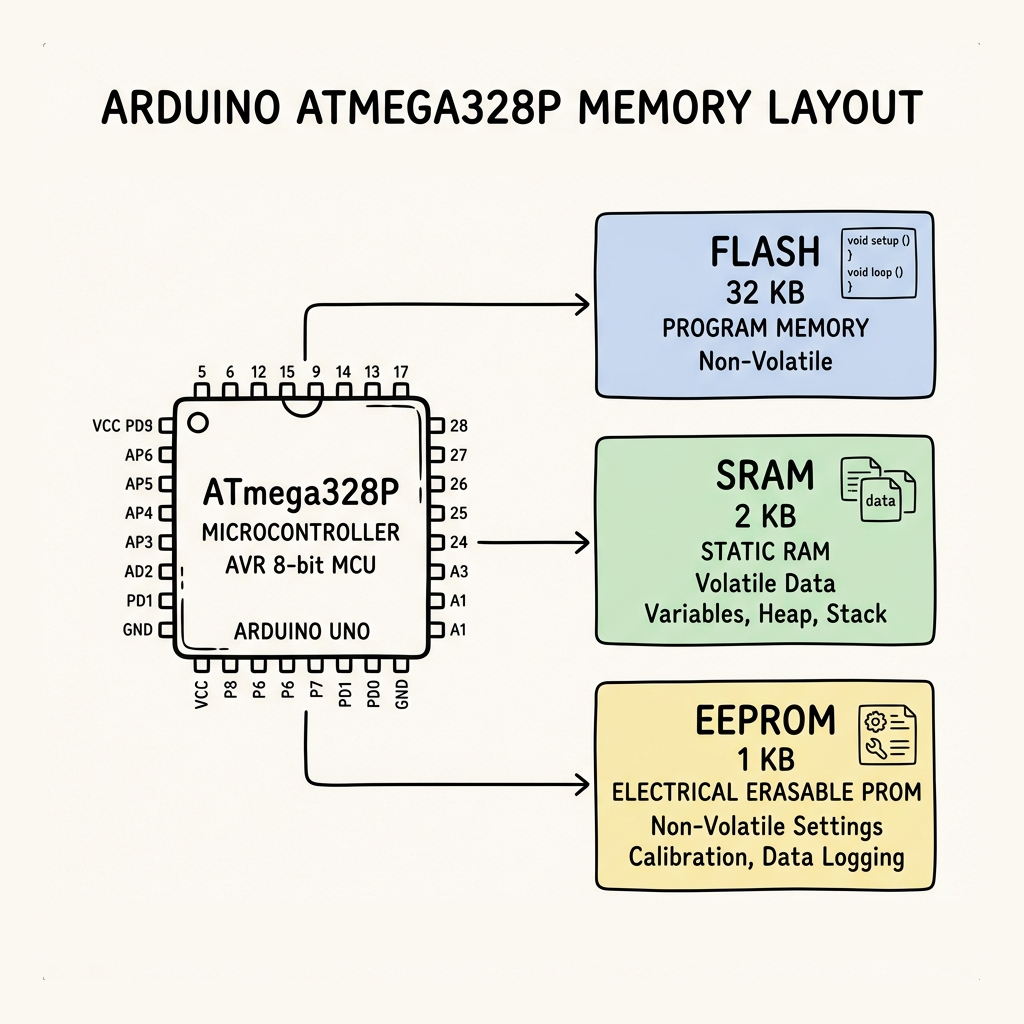
The whole hierarchy on one chip: program in Flash, working data in SRAM, settings in EEPROM.
- Flash (32 KB): This is where your compiled sketch lives. It’s non-volatile, so your program stays safe when you unplug the USB cable.
- SRAM (2 KB): This is the working memory where your program’s variables are stored while it runs. It is volatile and tiny. If you try to store a lot of text or use large arrays, you will run out of SRAM, and your Arduino will crash or reset randomly.
- EEPROM (1 KB): A small non-volatile scratchpad to save settings (like calibration values) that must survive a power cycle.
One important tip: Flash and EEPROM have a physical write limit. Flash survives about 10,000 writes, and EEPROM about 100,000. If you write to the EEPROM inside a fast loop running every millisecond, you can permanently destroy that block of memory in a few minutes!
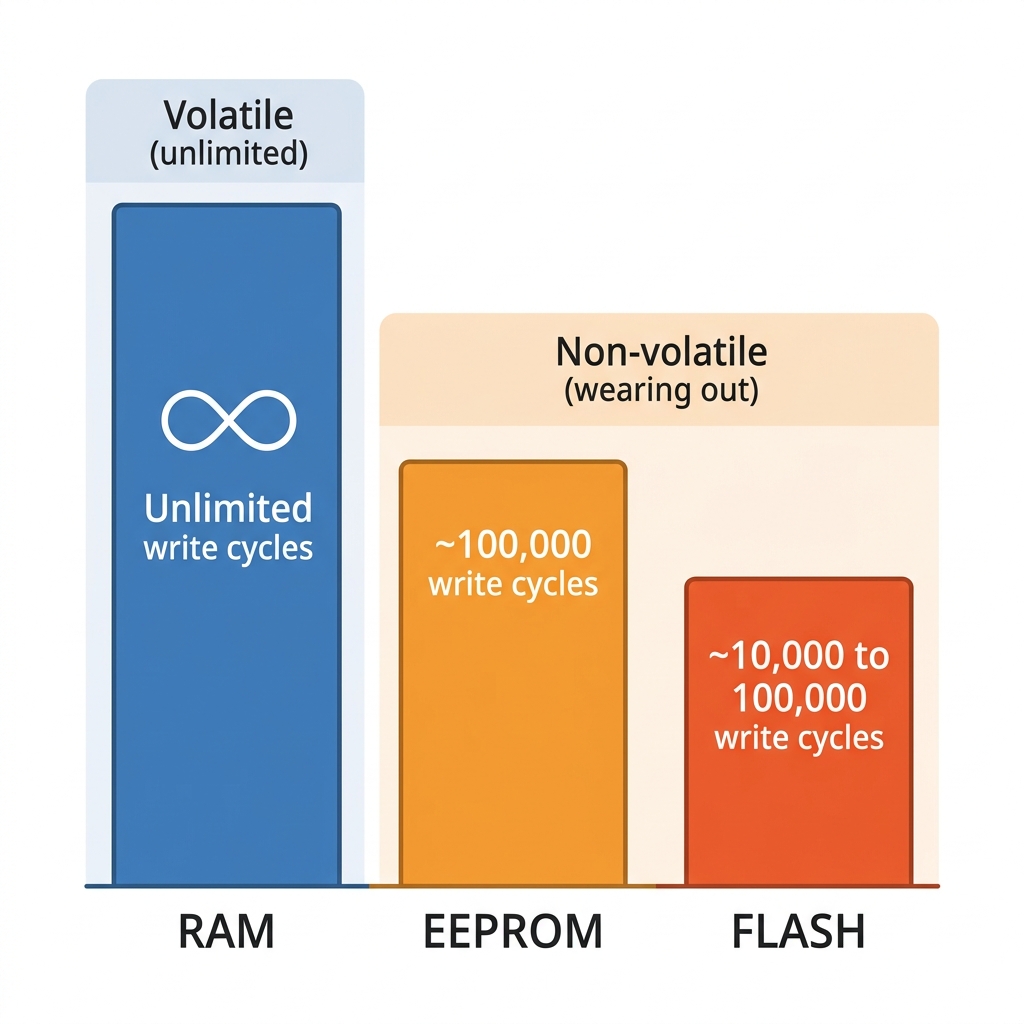
Volatile memory never wears out from writing. Flash and EEPROM do.
Some advanced boards (like the ESP32) also support PSRAM (Pseudo-Static RAM). It’s actually cheap DRAM underneath, but it mimics SRAM to the system so you get cheap, high-capacity external memory for handling camera frames or audio buffers.
Wrapping Up
So let’s recap the map we just built. Every memory type you’ll encounter in your tech journey is just a leaf on this same tree. It’s either SRAM-like, DRAM-like, or Flash-like, sitting at some layer of the hierarchy pyramid.
Hopefully, this guide helps you decode the specs next time you buy a computer or write a microcontroller sketch. We’ve only scratched the surface of the SRAM/DRAM/DDR story and the GDDR/HBM story here — we’ll be going much deeper into both of those in separate articles, so keep an eye out for those if you want the full picture.
Please let me know if this guide was helpful. Feedback is most welcome. If you have any questions or get stuck with low memory on your projects, leave a comment below! Happy hardware building.