Setting Up OpenLane using Ubuntu and Docker
OpenLane is an automated RTL to GDSII flow based on several open-source tools, enabling complete physical chip design. It uses OpenROAD, Yosys, Magic, Netgen, CVC, SPEF-Extractor, KLayout along with other scripts and flows for to take a design from RTL to GDSII. This guide walks through setting up OpenLane using Ubuntu 25.04 and Docker.
OpenLane was released by Efabless, targetting it to be a dead simple flow using multiple existing projects like Yosys, OpenRoad, Magic etc. The goal was to create a no man in the loop flow along with having a short time. This flow was used to get the chips fabricated using Efabless’s foundry using Skywater 130nm PDK.
The approach was all batteries included. User got all the tools in binary without having to compile anything from source and having to worry about the version and API compatibility between different tools versions. This along with the complete flow setup using TCL script provided a straight-forward flow which got from RTL to GDSII.
Lets see how to setup OpenLane on an Ubuntu 25.04 machine. If you already have an Ubuntu 20.04+ machine, you can follow the steps on that as well.
Prerequisites
Before starting, ensure you have:
- Ubuntu 20.04 or newer (this guide uses 25.04 on a virtual machine)
sudoprivileges- Stable internet connection
Installation
Step 0: Install Ubuntu
If you are not already using a Linux computer, you can follow this on a virtual environment. I am using VMWare Fusion for this purpose. Once you have your favorite virtual environment ready, you can get Ubuntu from the official website.
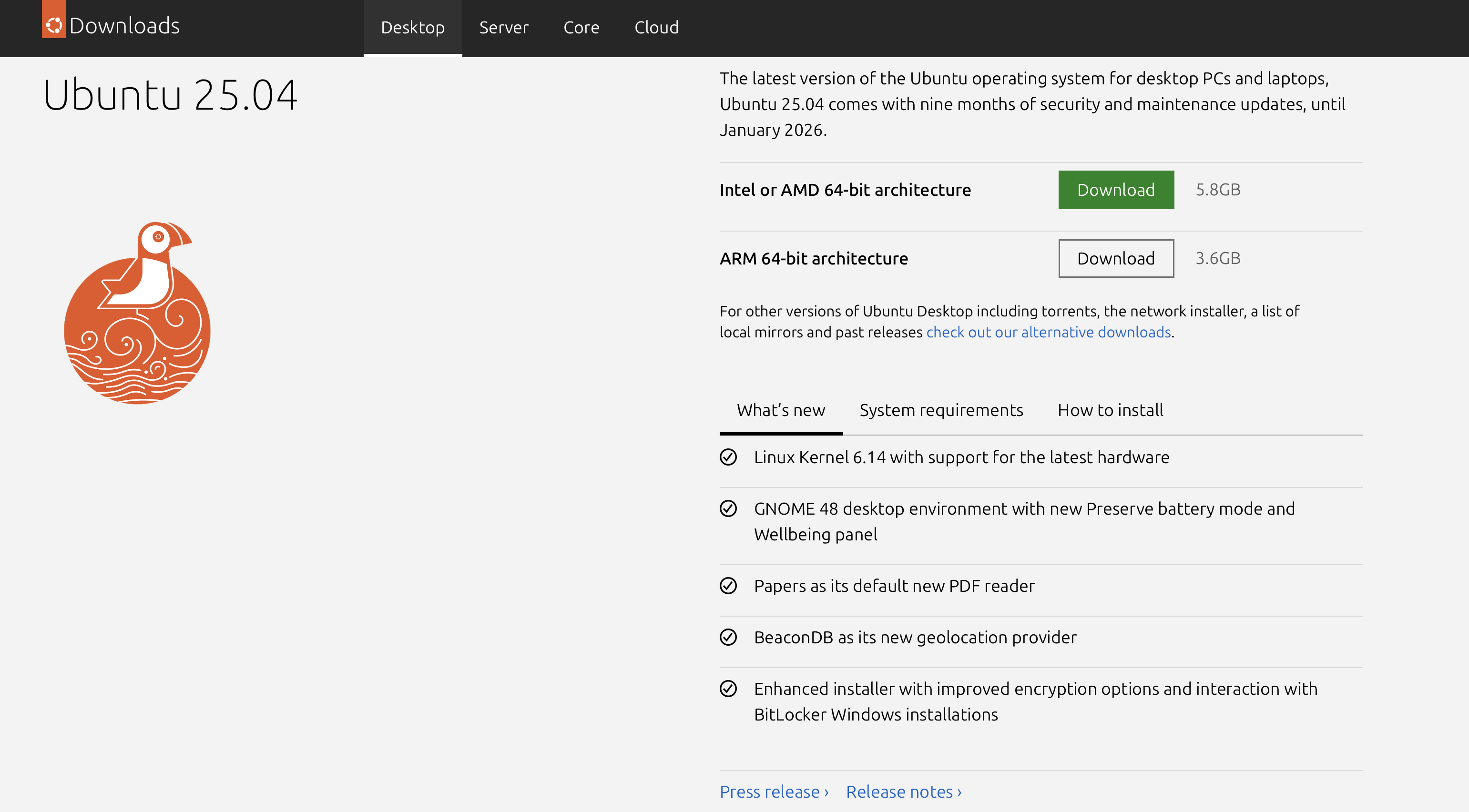
At the time of writing this tutorial we have 25.04 as latest version. If preferred, LTS version can be used as well, which at the time of writing is 24.04. After downloading the ISO file follow the steps required to install it in your preferred virtual environment.
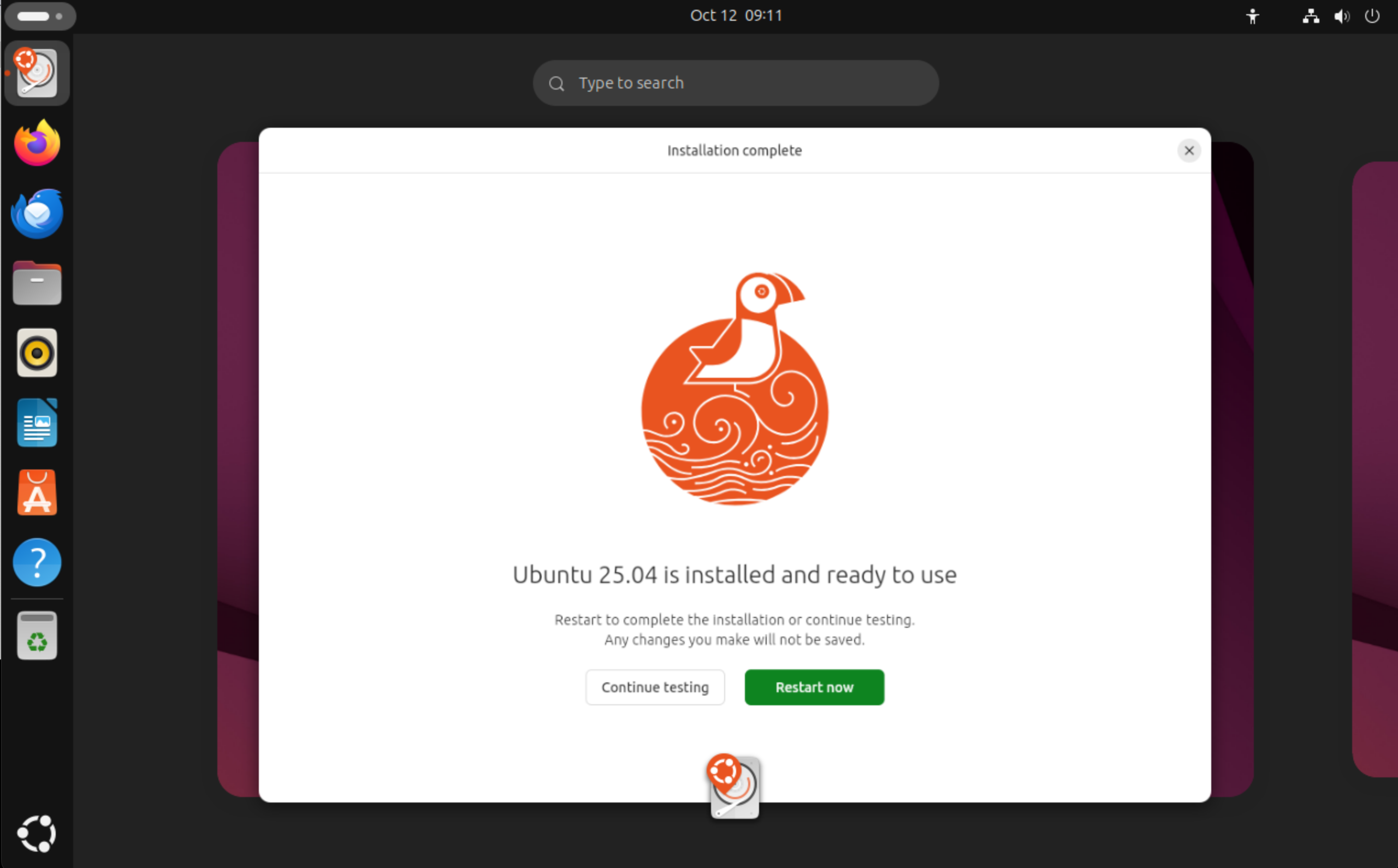
Once Ubuntu is installed, move to next steps to setup Docker and OpenLane
Step 1: Update Ubuntu System
First, update your system packages:
sudo apt update
sudo apt upgrade
If using VMWare Fusion, you may want to install Open VM Tools. It helps in scaling the resultion on guest OS as you change the window size.
sudo apt install open-vm-tools-desktop
Step 2: Install Required Dependencies
Install the essential packages needed for OpenLane:
sudo apt install -y build-essential python3 python3-venv python3-pip make git
These packages provide:
build-essential: Compilation tools (gcc, g++, make)python3andpython3-pip: Python runtime and package managerpython3-venv: Virtual environment supportgit: Version control system
Step 3: Install Docker
OpenLane uses Docker to manage its complex dependencies. Lets install Docker next:
Remove Old Docker Installations
sudo apt remove docker docker.io containerd runc
Install Docker Dependencies
Using -y will install the packages without waiting for the confirmation prompt.
sudo apt install ca-certificates curl gnupg lsb-release
Add Docker’s Official GPG Key
sudo mkdir -p /etc/apt/keyrings
curl -fsSL https://download.docker.com/linux/ubuntu/gpg | sudo gpg --dearmor -o /etc/apt/keyrings/docker.gpg
Set Up Docker Repository
echo \
  "deb [arch=$(dpkg --print-architecture) signed-by=/etc/apt/keyrings/docker.gpg] https://download.docker.com/linux/ubuntu \
  $(lsb_release -cs) stable" | sudo tee /etc/apt/sources.list.d/docker.list > /dev/null
Install Docker Engine
sudo apt update
sudo apt install -y docker-ce docker-ce-cli containerd.io docker-compose-plugin
Configure Docker for Non-Root Access
Add your user to the docker group to run Docker commands without sudo:
sudo groupadd docker
sudo usermod -aG docker $USER
Important: Reboot your system for the group changes to take effect:
sudo reboot
Or if you don’t want to restart the computer, run following to make changes take effect:
newgrp docker
Verify Docker Installation
After rebooting, verify Docker is working:
docker --version
docker run hello-world
If all went well, you should see output as below:
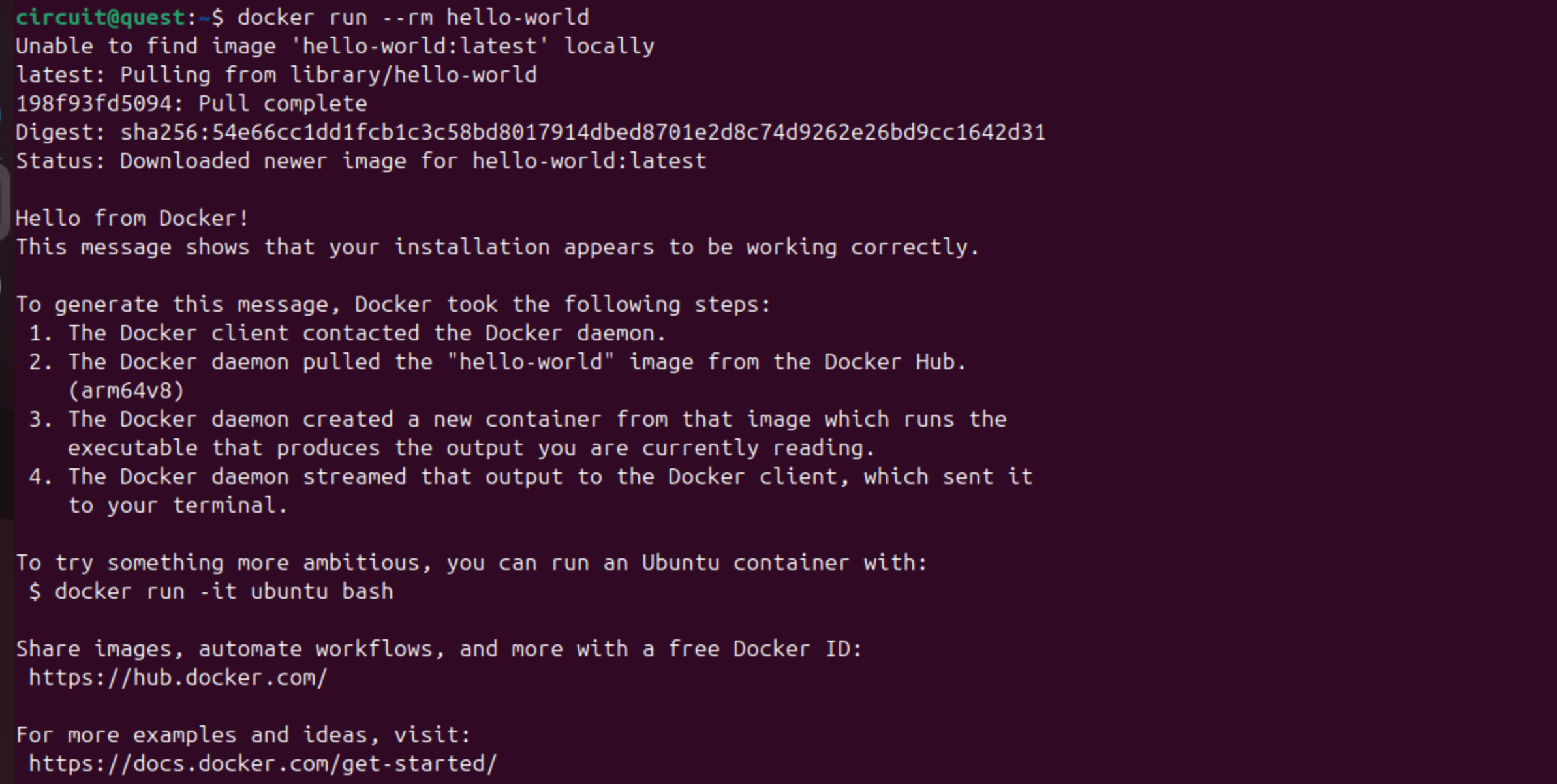
If you are getting below error when running docker commands, you need to add the user to the docker unix group and restart the system as mentioned in previous step:

Step 4: Install OpenLane
With Docker configured, we can now proceed to install OpenLane:
Clone the OpenLane Repository
git clone --depth 1 https://github.com/The-OpenROAD-Project/OpenLane.git
cd OpenLane/
Build OpenLane
Run the make command to set up OpenLane:
make
This will:
- Pull the required Docker images
- Set up the OpenLane environment
- Configure all necessary dependencies including setting up the default SkyWater 130nm PDK.
Test the Installation
Verify everything works by running the test:
make test
This runs a complete flow on a sample design. At completion, you should see a screen like this:
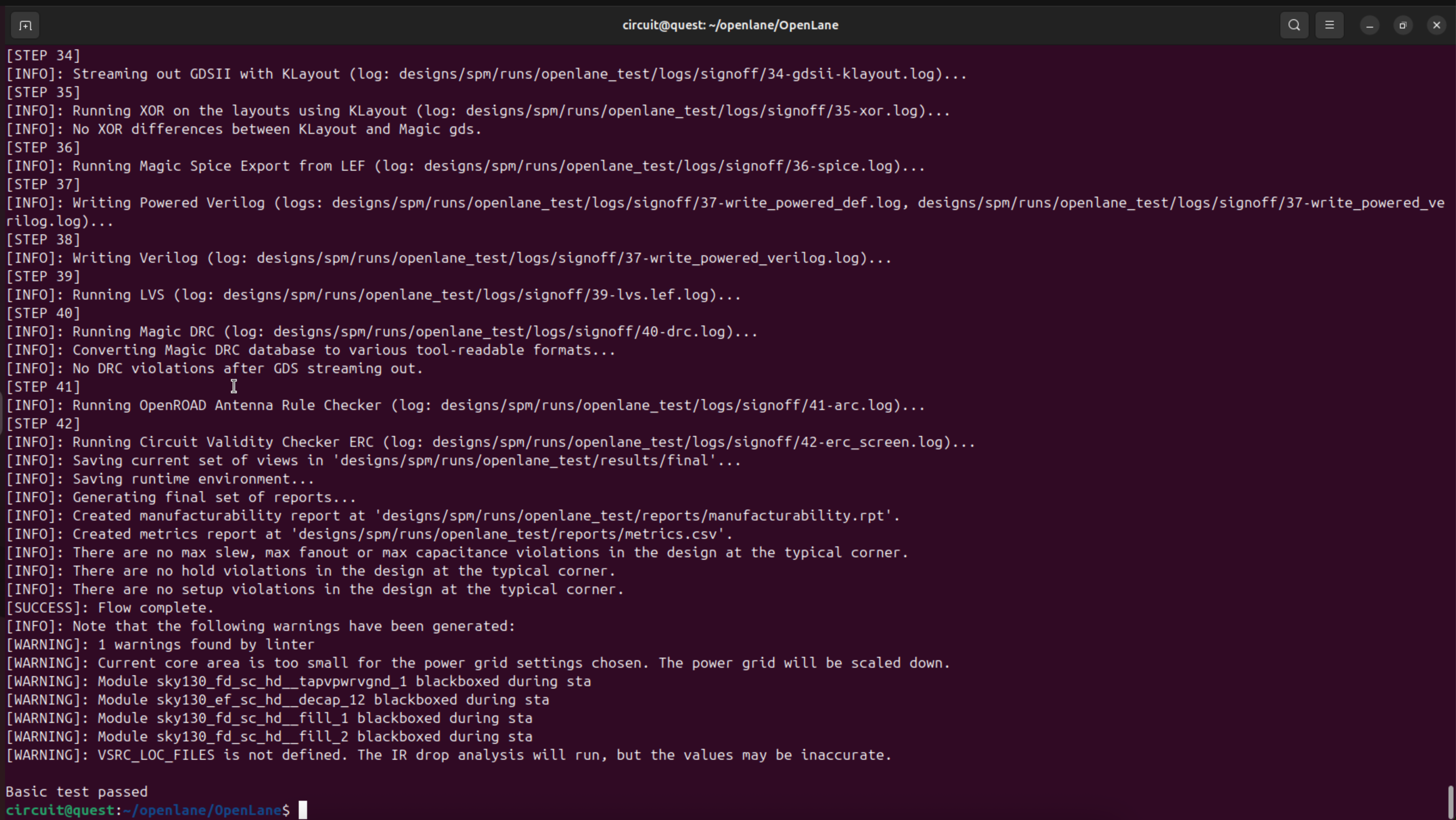
If successful, you’ll see output files generated in the designs/ directory.
Step 5: Verify Installation
Check that all tools are properly installed:
git --version
docker --version
python3 --version
pip3 --version
make --version
Optional: View Test Results
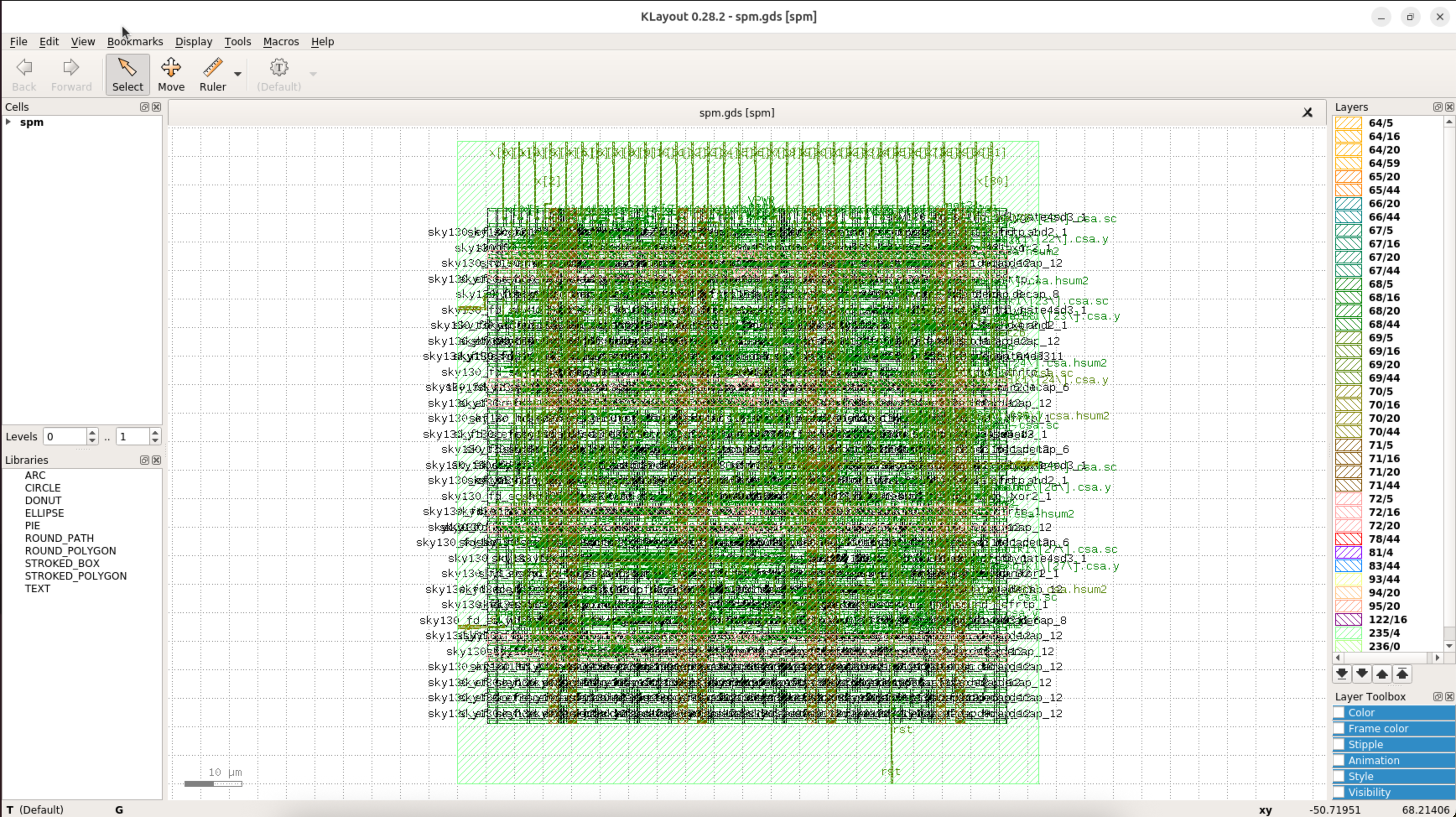
If you have KLayout installed, you can view the generated GDSII file from the test design:
klayout designs/spm/runs/*/results/final/gds/*.gds
Or use the klayout tool installed within OpenLane environment. Run following commands:
xhost +local:docker # Enable docker to connect to X server
make mount          # Launch OpenLane docker container and mount the volume in it
klayout designs/spm/runs/*/results/final/gds/*.gds
It should bring up Klayout window:
At this point we have a working OpenLane setup.
Troubleshooting
Docker Permission Denied
If you get permission errors with Docker:
sudo usermod -aG docker $USER
sudo reboot
Make Command Fails
Ensure all dependencies are installed and Docker is running:
sudo systemctl status docker
Python Version Issues
OpenLane requires Python 3.6+. Verify your version:
python3 --version
Next Steps
With OpenLane installed, you can:
- Explore the example designs in
designs/directory - Create your own RTL designs
- Run the complete RTL-to-GDSII flow
- Learn about PDK (Process Design Kit) configuration
We now have a complete OpenLane environment set up on Ubuntu 25.04 with Docker. This powerful toolchain enables us to take Verilog RTL designs all the way to manufacturable GDSII layouts using fully open-source tools. In other articles, we will see how to use different tools available in OpenLane.